Adding, changing, or deleting a clinic logo
Once you have added your clinic logo, you can view your clinic logo, change your clinic logo, or delete your clinic logo.
Adding a clinic logo
Follow these steps to upload your clinic logo.
-
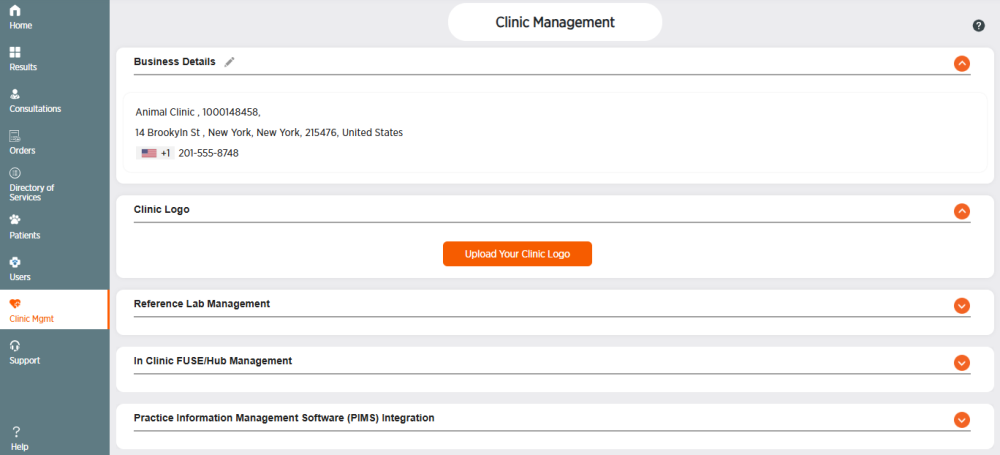
Choose Clinic Mgmt from the side menu.
-
Click Upload Your Clinic Logo in the Clinic Logo section..
-
Click in the blue dotted area to upload your clinic logo or drag and drop the clinic logo file. The file size limit is 2 MB. The allowed file types are PNG or JPG.
-
For the click to upload option: Click to upload or drag and drop, browse to the clinic logo file, select the file, then click Open.
-
For the drag and drop option: Drag and drop the clinic logo file inside the blue dotted line.
-
-
Click Upload to upload a clinic logo or X to exit without uploading.
-
Click OK.
Viewing a clinic logo
Follow these steps to view the clinic logo you are using in ZoetisDx.
-
Choose Clinic Mgmt from the side menu.
-
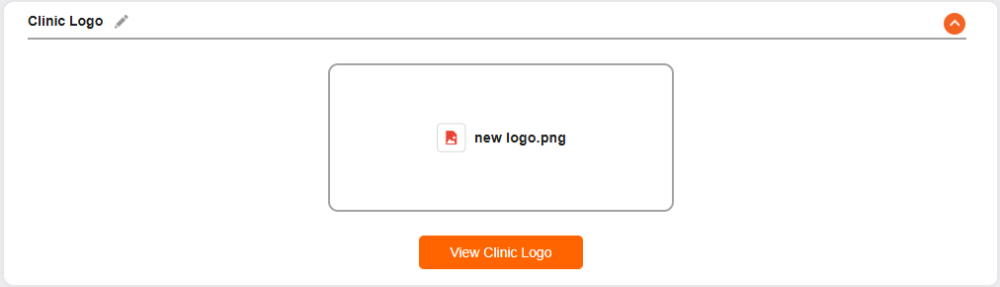
Click View Clinic Logo in the Clinic Logo section.
-
Click Close.
Changing a clinic logo
Follow these steps to change your clinic logo.
-
Choose Clinic Mgmt from the side menu.
-
Click
 in the Clinic Logo section.
 -
Click Replace Clinic Logo.
-
Click in the blue dotted area to upload your clinic logo or drag and drop the clinic logo file. The file size limit is 2 MB. The allowed file types are PNG or JPG.
-
For the click to upload option: Click to upload or drag and drop, browse to the clinic logo file, select the file, then click Open.
-
For the drag and drop option: Drag and drop the clinic logo file inside the blue dotted line.
-
-
Click Upload to upload your clinic logo or X to exit without uploading.
-
Click OK.
Deleting a clinic logo
Follow these steps to delete your clinic logo.
-
Choose Clinic Mgmt from the side menu.
-
Click
. -
Click Delete.
-
Click Yes to delete the logo or No to exit.