Adding, changing, or deleting a Zoetis Reference Laboratories (ZRL) account
Once you add a Zoetis Reference Laboratories (ZRL) account, you can edit your ZRL account or delete your ZRL account.
Note: Only one ZRL account can be integrated with ZoetisDx at a time. To add new ZRL account, the previous ZRL account must be
.
Adding a ZRL account
Follow these steps to add your clinic's ZRL account.
-
Choose Clinic Mgmt from the side menu.
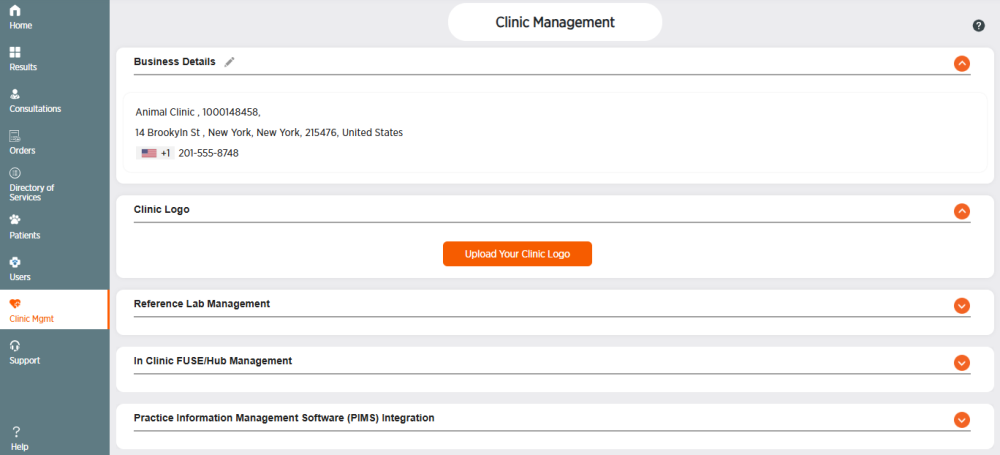
-
Click
 in the Reference Lab Management section.
-
Click Add Reference Lab Account.
-
Enter your SAP ID/LIS ID.
-
Click Next.
-
Click Confirm to add your Reference Lab account or Cancel to exit without adding it.
Changing a ZRL account
Follow these steps to edit your clinic's ZRL account.
-
Choose Clinic Mgmt from the side menu.
-
Click
in the Reference Lab Management section.
-
Click Edit Reference Lab Account.
-
Click Update Account.
-
Enter the SAP ID/LIS ID for your clinic, then click Next.
-
Click Confirm or click Cancel to exit without changing the account.
Deleting a ZRL account
Follow these steps to delete your clinic's ZRL account.
Note: Deleting or changing the linked ZRL account will remove any results related to the removed account.
-
Choose Clinic Mgmt from the side menu.
-
Click
in the Reference Lab Management section. -
Click Edit Reference Lab Account.
-
Click Delete Account.
-
Click Confirm to delete the account or Cancel to exit.