Adding a panel or test to an existing order
You can add a panel or test to an existing order from the Actions menu to the right of any order on the Orders page.
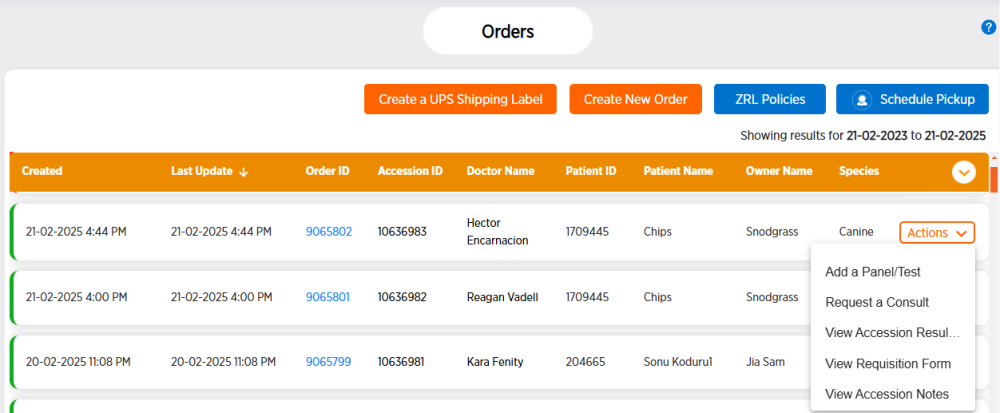
Follow these steps to add a panel or test to an order.
-
From the side menu, choose Orders.
-
Locate the desired order row, then click Actions at the right end of the row.
-
Choose Add a Panel/Text.
-
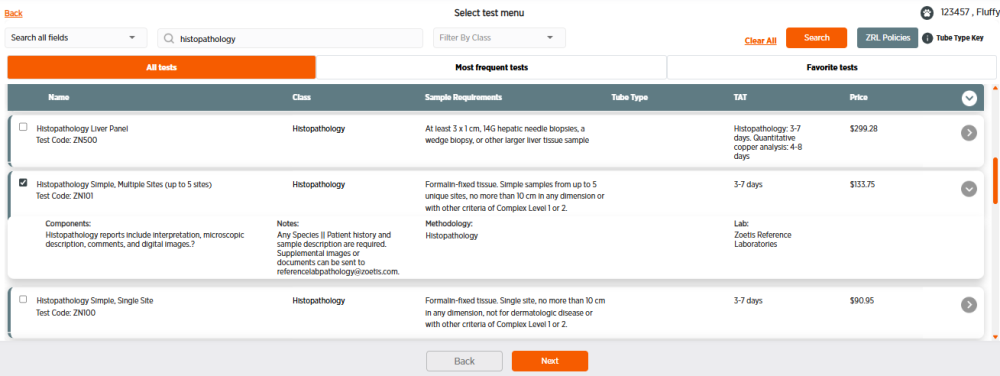
Check the boxes to the left of any tests you want to add to your order.
-
You can search for tests by entering text in the search field. The search field searches all test fields by default, but you can also choose Search by test name to search only the test name field. Once you have entered search information, click Search to update the tests shown.
-
The All tests (default) tab shows all available tests. You can click Most frequent tests to choose from the tests most frequently ordered by your clinic or Favorite tests to view the tests that you have marked as favorites in the Directory of Services page.
-
Click in the row of any test to see more information about the test.
-
-
Once you have checked a box, the test will be selected when you go to the next step, even if you start a new search to add more tests and can no longer see all the tests that you checked.
-
-
Click Next.
-
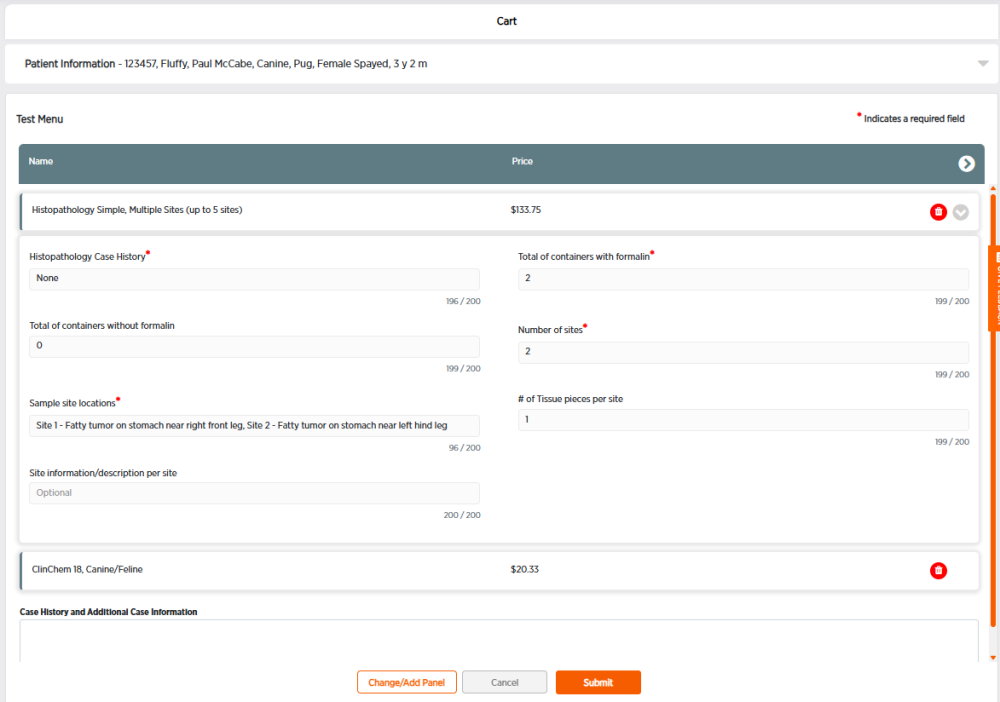
Enter any required additional information for tests. All tests that require you to enter additional information will have a
 to the right of the test.
 -
If you want to remove a test from your order, click
 to the right of the test.
 -
If you want to add additional tests to your order, click Change/Add Panel, then return to step 4 above.
-
Enter notes in the Case History and Additional Case Information field, if desired.
-
-
Click Submit, or click Cancel to exit the order process without submitting.
-
Click View Requisition Form to view a PDF of the requisition form for the order in a new tab, print the form, and include it with your specimen(s), or click Close to exit without viewing the form.