Merging patients
Note: Once you have merged patients, the action cannot be reversed.
You cannot transfer results from one patient to a different patient, but you can merge duplicate patient records for the same patient together. Follow these steps to merge multiple patient records together.
-
Click Patients in the side menu.
-
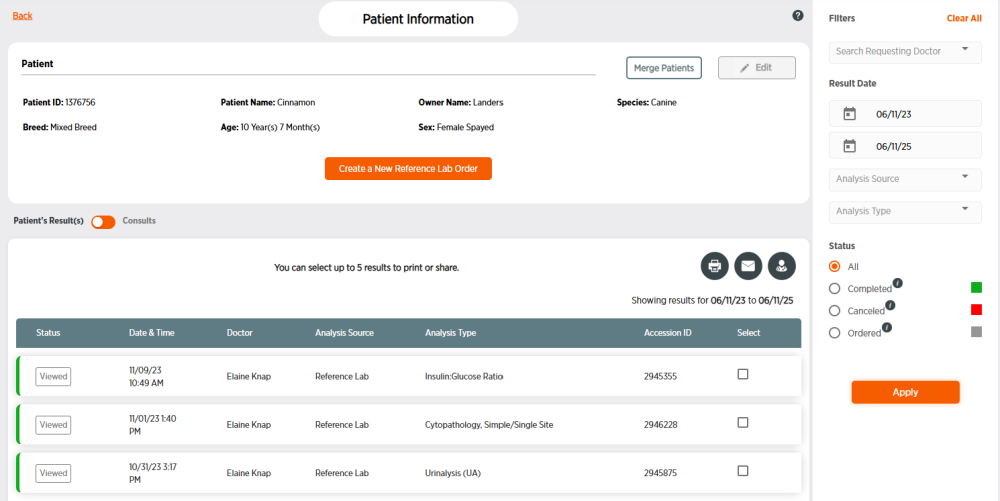
Click the Patient ID number for the patient. You may need to filter patients to find the correct patient.
-
Click Merge Patients.
-
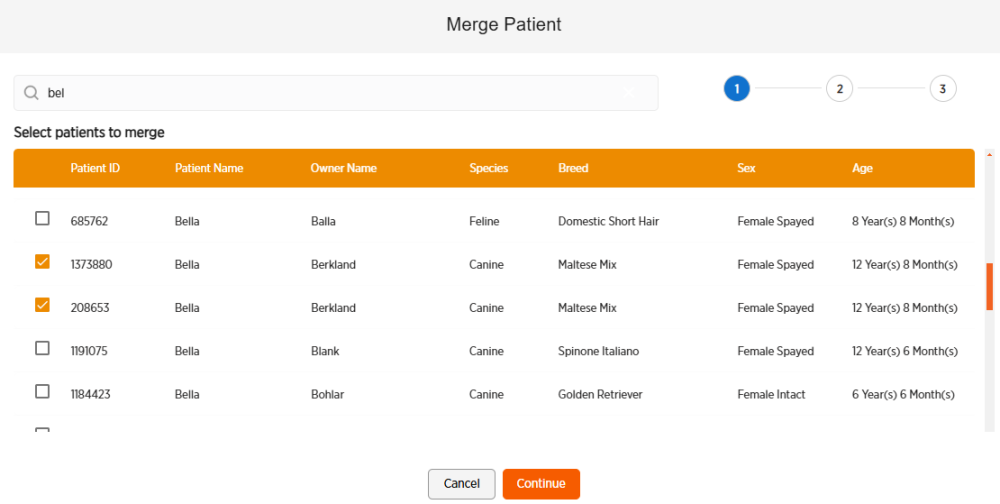
Search for the patient to be merged by entering at least 3 characters of the patient's name, owner's name, doctor's name, or patient ID in the search bar.
-
Check the box next to each patient to merge. You will need to check all patients to be merged (the patient you were viewing in step 2 will not automatically be merged).
-
Click Continue.
-
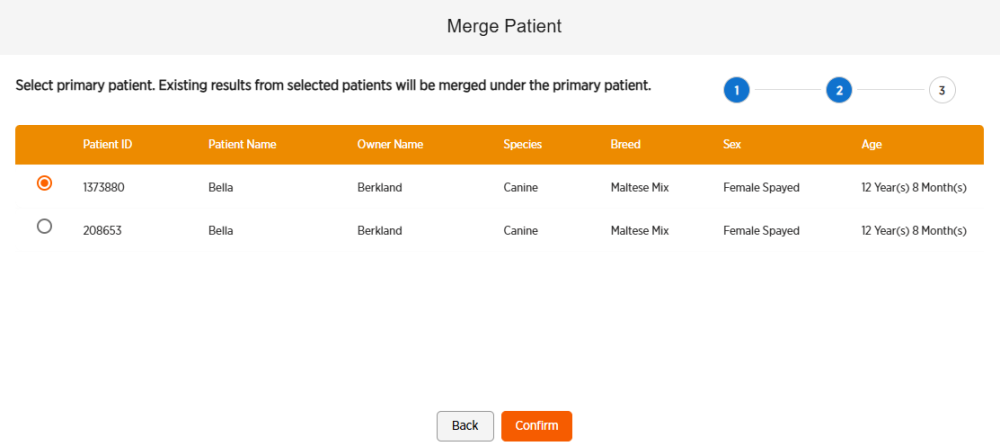
Click the circle next to the primary patient into which the other records should be merged.
-
Click Confirm.
-
Click Merge Patient.
-
Click Merge Patient again.
-
Click OK.
-
All patient records are now merged under the primary Patient ID. You can repeat this process if you need to merge another patient ID into the primary Patient ID.