Viewing Responsible Trending data
Follow these steps to view Responsible Trending data for a test result.
Note: Responsible Trending data is currently set to go back two years. If you want earlier tests to show up in your Responsible Trending graph,
and set the date for your search to the date from which you want results to show before opening the patient results.
-
Click Results in the side menu.
-
Click the desired patient row to view test result cards. You may need to filter results to find the right patient.
-
Click
 next to the desired test order card to view test result details.
 -
Click
 to the left of the result details to view Responsible Trending data.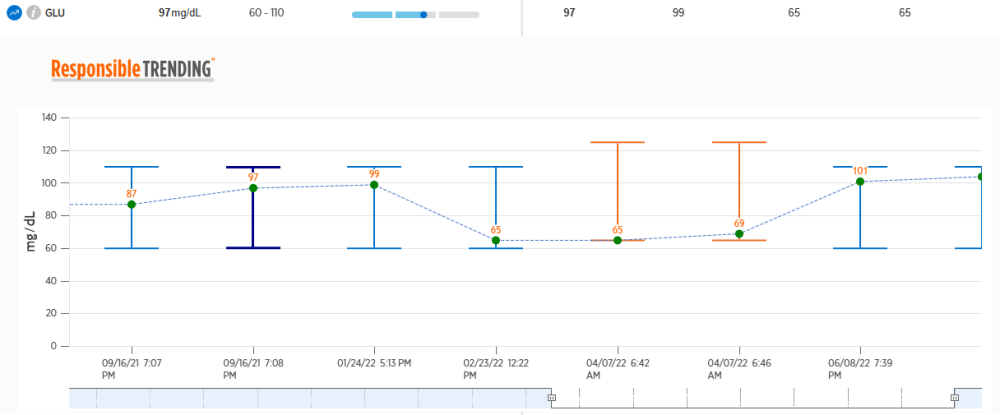
-
-
The bars represent the reference interval for the test. If the result point is at the low end of the bar, it is at the low end of the range.
-
The results are displayed in chronological order. Dash lines connect each point to display the trend over time.
-
The date and time for each test result is displayed under the result.
-
-
Hold your cursor over any point on a bar to get more information about that test result.
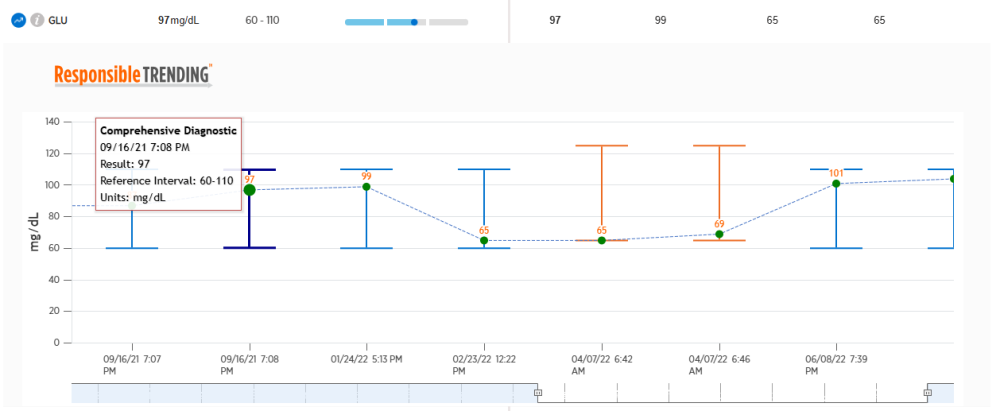
-
Click
 on either end of the date range at the bottom of the Responsible Trending results and drag it to the right or left to change the date range displayed.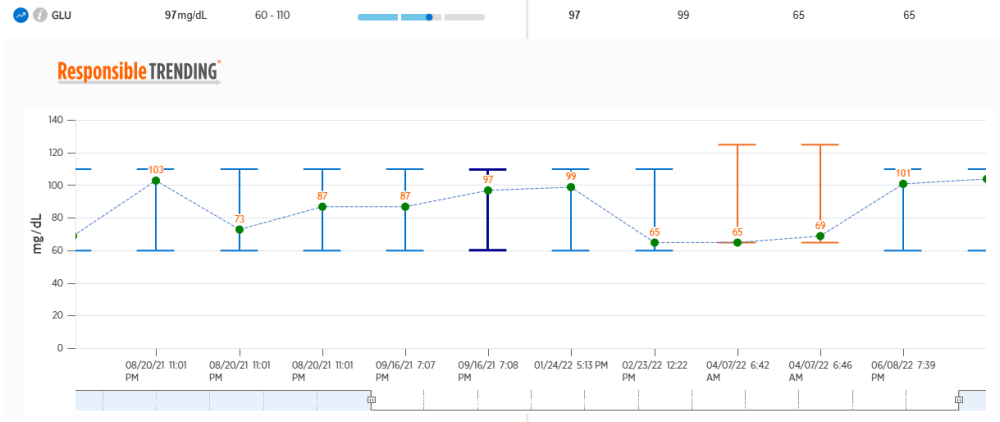
-
Click
to the left of the result details to minimize Responsible Trending data.
For more information about Responsible Trending, click here.