Logging in
The following sections will help you log into ZoetisDx using your computer or your mobile device for the first time. Each ZoetisDx should have their own login.
Note: If you are an administrator of a clinic setting up ZoetisDx for the first time, you will need to register your clinic before logging in. If you are a new user, you will need to set a password before logging in.
Logging in using your computer
Follow these steps log into ZoetisDx web portal for the first time.
-
Go to zoetisdx.com.
-
Choose your country and language.
-
Click Login.
-
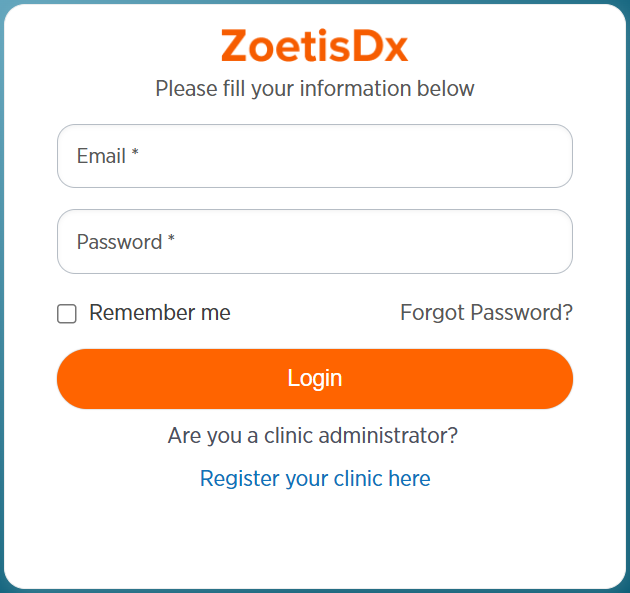
Enter your email address and password. You can check the Remember me box to save your login information (do not choose this option if you are using a shared computer).
-
Click Login.
-
Set up two-factor authentication.
-
Note:
Logging in using the mobile app
Follow these steps to log into the ZoetisDx mobile app for the first time. The ZoetisDx mobile app can be downloaded for iOS or Android.
-
Download the ZoetisDx mobile app from the Apple App Store or Google Play Store.
-
Launch the ZoetisDx mobile app.
-
The first time you log in, you will need to choose your country and language, then click Login.
-
Enter your email address and password.
-
Click Login. You can check the Remember this device box to save your login information.
-
Set up two-factor authentication.
-
The ZoetisDx Home page will open.
Note: