Registering your clinic
If your clinic is new to ZoetisDx, you will need to register it. Follow these steps to register your clinic for the first time. Once your clinic is registered, you can log in and add your clinic information.
-
Go to zoetisdx.com.
-
Choose your country and language, then click Login.
-
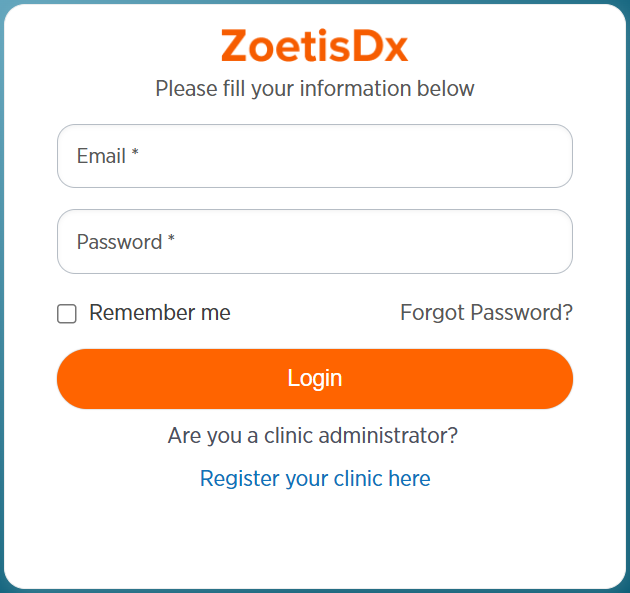
Click Register your clinic here below the Login button.
-
Enter your name, email, and password. All fields marked with * are required.
-
Enter your Zoetis account number. If you do not have your Zoetis account number:
-
Click Search by zip code.
-
Enter the clinic zip code.
-
Click Check.
-
Select a clinic.
-
Click Add Location.
-
If you do not have your Zoetis account number and you are not able to find your clinic by searching by zip code, click enter it manually to enter your clinic information manually. All fields marked with * are required.
-
-
Agree to the End User License Agreement by checking the box.
-
Click Submit or Back to exit.
-
Check your email for the "Welcome to ZoetisDx for Business" email. If you do not see the email, check your junk or spam email folder.
-
Open the email and click on the verification link. You can also copy and paste the link into your browser.
-
Click Continue on Browser to continue your clinic registration.
Note: Your password needs at least 8 characters in at least 3 of these 4 categories: lower-case letters, upper-case letters, numbers, and symbols.
Once you have registered your clinic, you can log in and add your clinic information.