Printing or downloading a patient's test results
Follow these steps to download a patient's test results so they can be printed or emailed.
Note: If your test result contains an attached PDF (i.e. histopathology), you must go to the result details page and click  to save, email, or print the attached PDF.
-
Click Patients in the side menu.
-
Click the Patient ID number for the patient. You may need to filter patients to find the correct patient.
-
In the test results at the bottom of the page, check the box next to up to 5 test results that you want to share.
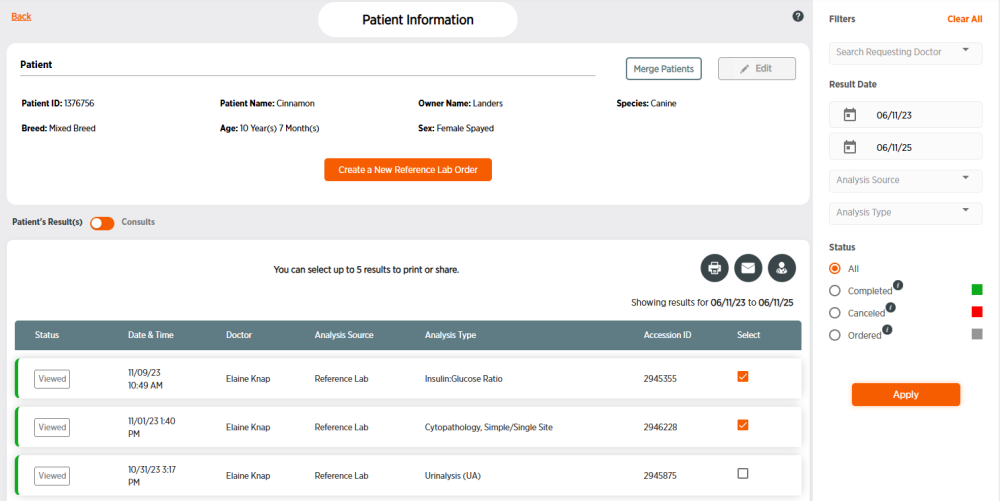
-
Click
 .
. -
Click Dismiss or wait until your results have downloaded.
-
Click View Document. This results document has automatically saved to your Downloads folder. You can now print the file or email it as an attachment.