Viewing orders
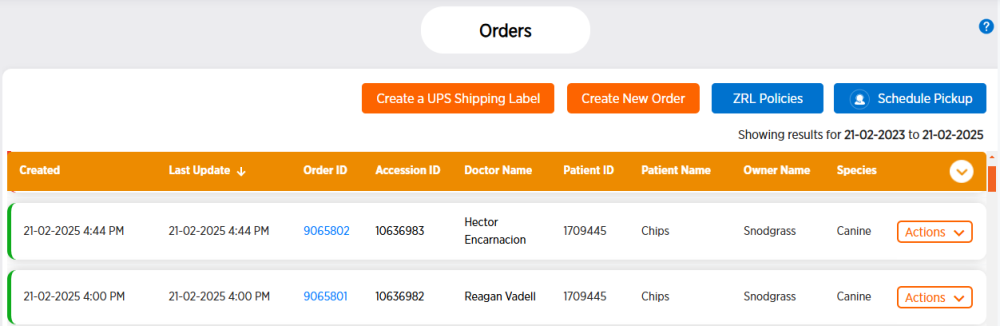
The table in the Orders page shows all your clinic's existing orders. You can view test results, add a panel or test, request a consultation, and view accession results, requisition forms, and accession notes from this page.
Viewing test results from an order
Follow these steps to view test results from an order.
-
Click Orders in the side menu.
-
Click the Order ID to view a PDF of the test requisition form.
-
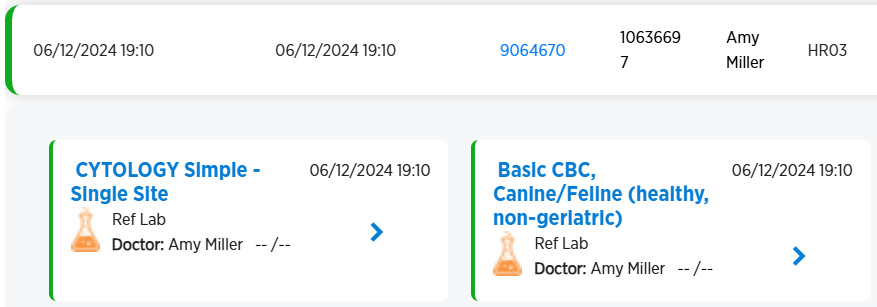
Click the order's row to view test result cards from the order.
-
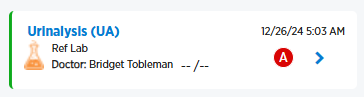
The colored bar on the left side of the test card indicates the test's status. A green test result card is a completed test. A gray test has been submitted to the laboratory. An orange test is being processed. A red test has been canceled.
-
You may also see circled letters on the order cards. A is an amended test result. C is a corrected test result. P is a preliminary test result.
-
-
Click
 at the right side of the test result card to open the Accession Results view, which provides a quick look at all the results for the selected accession.
Viewing Accession Results, Requisition Forms, and Accession Notes
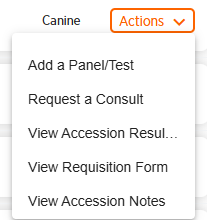
The Actions drop-down menu at the right end of each order row also includes options to view details about each order.
To view order details:
-
From the side menu, choose Orders.
- Locate the desired order row, then click the Actions button at the right end of the row.
-
Choose one of the following:
-
View Accession Result PDF to view the accession result PDF for the order. This option displays all results for an accession on a single PDF so you do not have to open test results separately.
-
View
-
View Accession Notes to view the accession notes for the order.