Viewing accession results
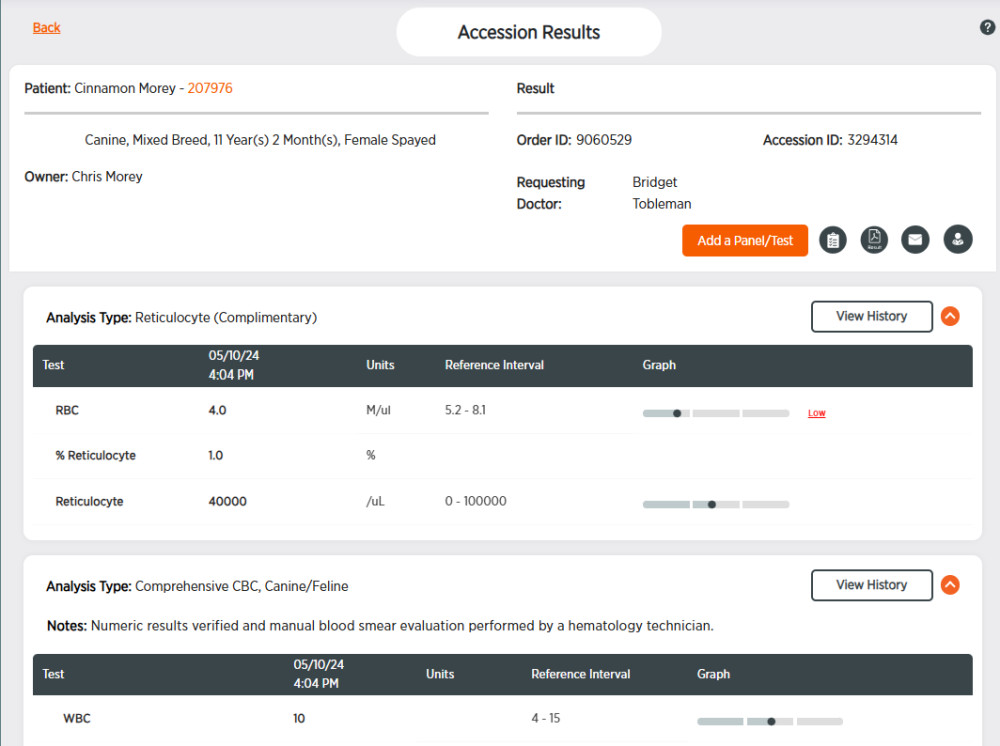
The Accession Results page displays all the results from one Zoetis Reference Laboratories (ZRL) accession or order together.
There are 2 ways to view accession results.
Method 1 - View the accession results from the accession
-
Choose Results from the side menu.
-
Click the desired patient row to view test result cards.
-
Click
 next to the desired test order card to view test result details.
 -
Click the Accession ID number.

Method 2 - View the accession results from the order
-
Choose Orders from the side menu.
-
Click in the anywhere in the order's row to view test result cards from the order.
-
Click
 at the right side of the test result card to open the Accession Results.
Once you have reached the Accession Results page, here are some things you can do:
-
Click the patient's ID number to view patient information.

-
Click Add a Panel/Test (if available) to add a panel or test.
-
Click
 to open the requisition form for the test.
 -
Click
 to open a PDF of the accession results in a new tab suitable for viewing or printing.
 -
Click
 to email the test results.
 -
Click
 to start a consultation.
 -
Click
 to hide test results or
  to show test results.
 -
Click View History to view the Result Details for the test.
-
Click
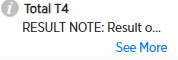
 (if available) to the left of the test name to bring up the test definition and differential information. The i icon appears next to the test name for many individual tests within common panels including chemistry, CBCs, and urinalysis. Click x to close the test information.
 -
If there are result notes for a test, you can click See More to review them.