Viewing patient information
Follow these steps to view patient information.
-
Click Patients in the side menu.
-
Click the Patient ID number for the patient. You may need to filter patients to find the correct patient.
-
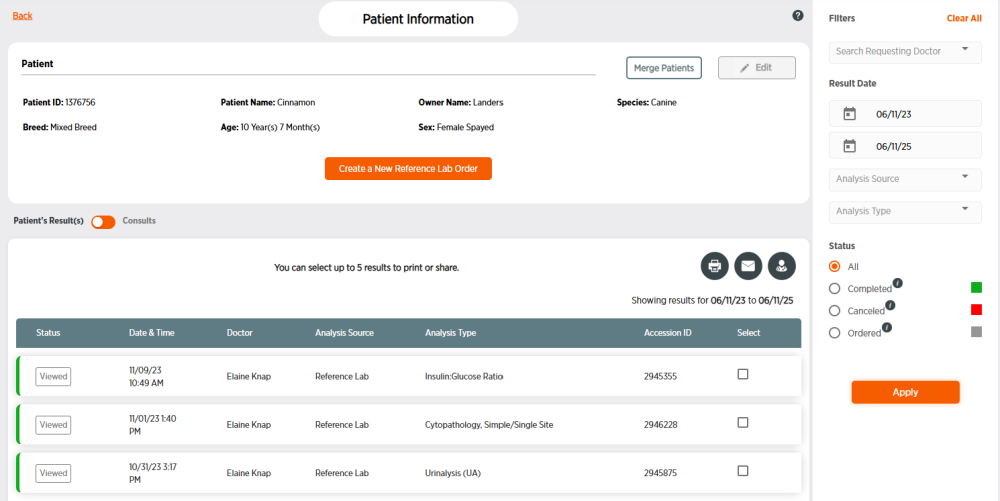
The patient's results will be displayed by default.
-
-
Tests with a green bar at the left side are complete. Tests with a gray bar are pending. Tests with a red bar have been canceled.
-
Click a test result to view result details.
-
-
Click
 to view the patient's consultations instead of results.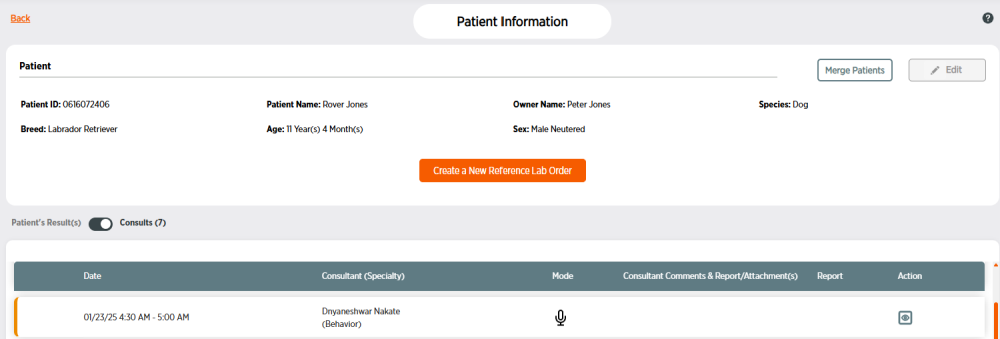
-
Completed consultations will have a green bar at their left side. Pending consultations will have an orange bar. Canceled consultations will have a red bar.
-
Click
 to view consultation information. If it's time for a scheduled consultation, you can click
  to join the consultation. Click Close to exit the consultation information.
 -
For completed consultations, click
 to download the consultation report to your Downloads folder.
-
Here are some things you can do from a patient's information: