Emailing patient test results from the test result details
Follow these steps to email or export a patient's test results in client-friendly format from the What can I do from the Result Details page? page.
Note: You can email the original Zoetis Reference Laboratories (ZRL) report from the Accession Details page if you prefer.
Note: If your test result contains an attached PDF (i.e. histopathology), you must click  to save, email, or print the attached PDF.
-
Click Results in the side menu. Results are sorted by patient. You can use the Filters section to filter results.
-
Click the desired patient row to view test result cards.
-
Click
 to the right of the desired test to view the Result Details page.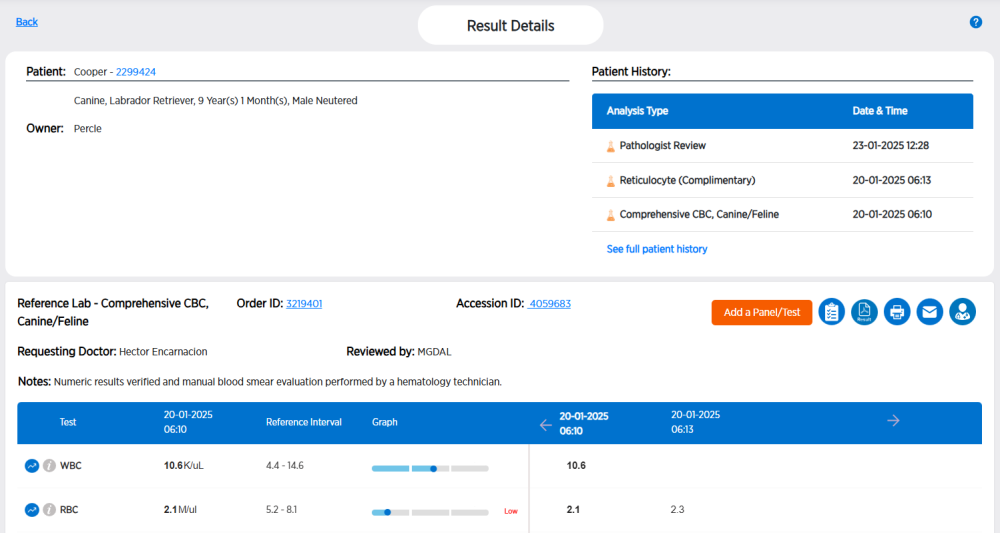
-
Click
 .
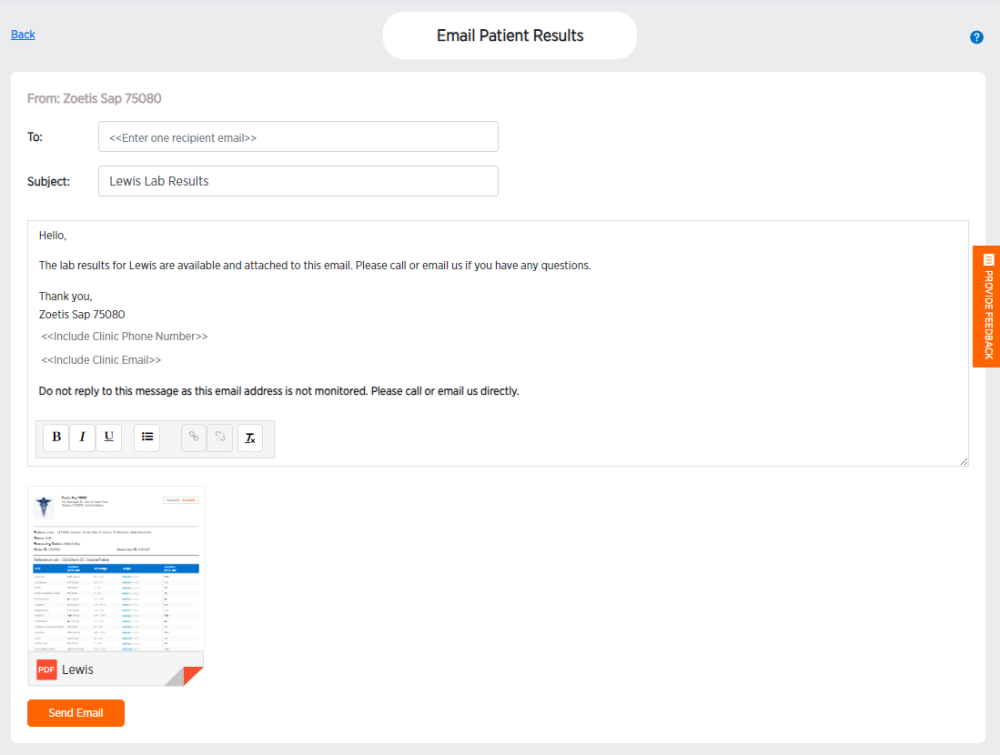
.
-
Enter an email in the To field. Only one email can be entered at a time.
-
Edit the Subject and body of the email, if desired.
-
Click the PDF result attachment to review it, if desired. The PDF attachment will have the clinic's logo and information at the top.
-
Click Send Email or click Back at the top of the page to exit without sending. If the client cannot find the email, have them check their spam folder.